
Set Up / Install Lulu EMR on Windows
Install Lulu EMR on Windows
You need a 64-bit Windows 10 or 11 PC with Windows Hello set up (a PIN is enough), and your receipt email.
Download It
On the Download page, choose Download for Windows.
Open the Installer
Open the file you downloaded. The installer isn’t signed by Microsoft yet, so the first time Windows shows “Windows protected your PC”: click More info, then Run anyway.
Install It
Follow the installer’s steps, then click Open Lulu EMR at the end. Next time, it’s Lulu in the Start menu.
Set Up the Records
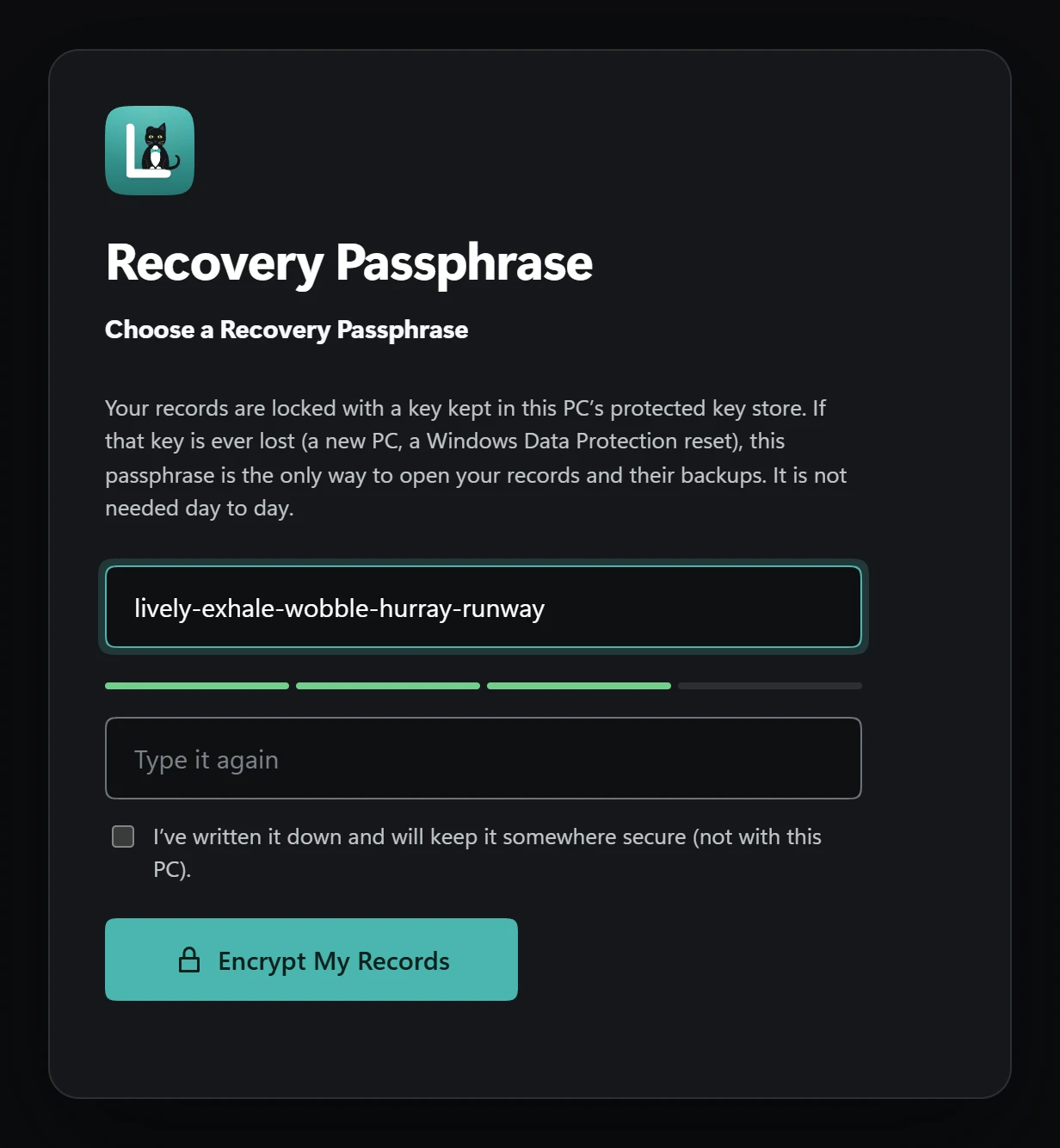
Choose Confirm It’s Me and use Windows Hello. Write down the recovery passphrase it suggests, tick the box and choose Encrypt My Records: it opens your records if this PC’s key is ever lost, and we can’t recover it. Then choose Open the Records, then Start with an Empty Record.
Activate It
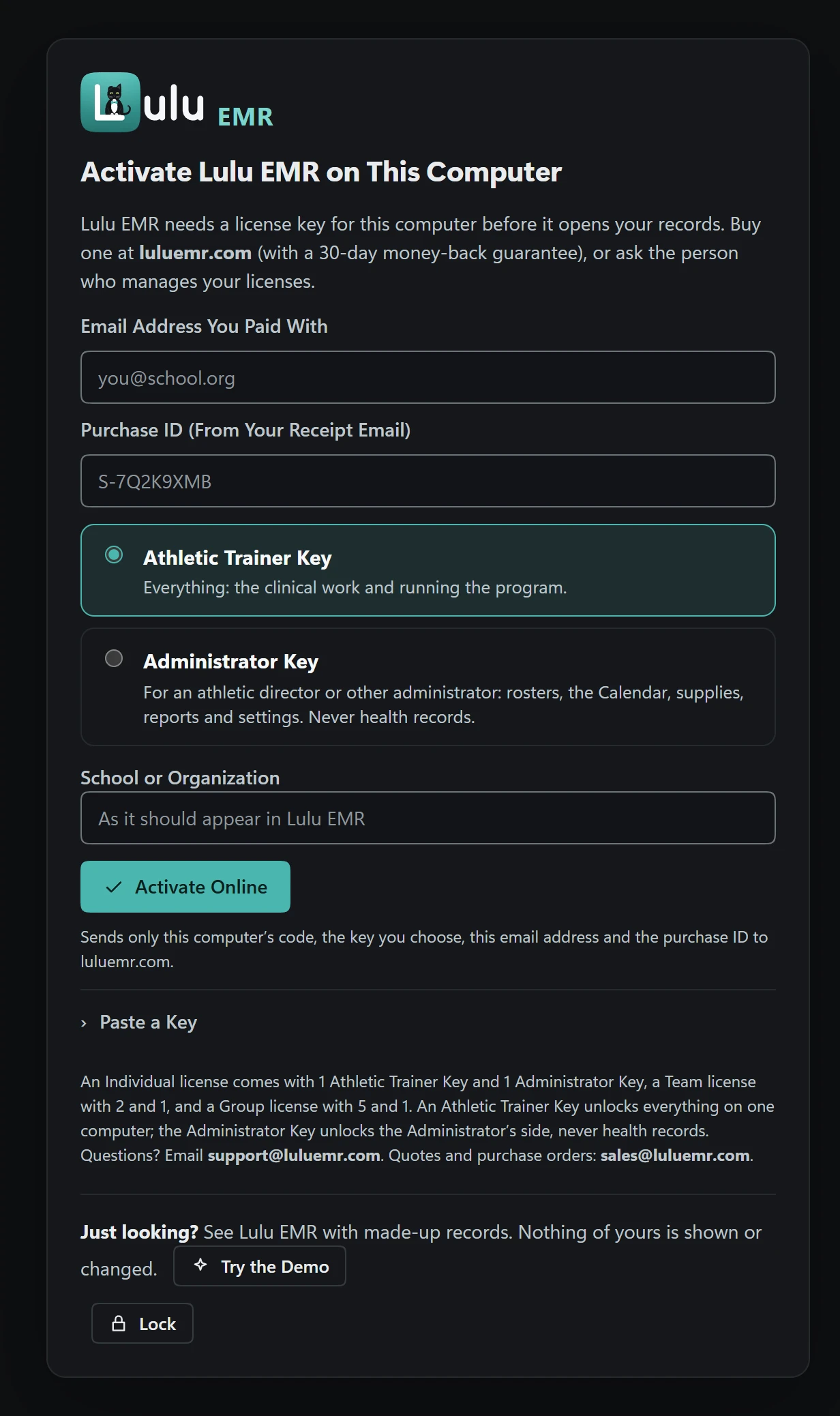
On Activate Lulu EMR on This Computer, enter the email address you paid with and the purchase ID from your receipt email, choose Athletic Trainer Key or Administrator Key and click Activate Online. The first computer also asks for your school or organization’s name. No internet on this PC? Choose Paste a Key and use the activation page from any phone or computer.
Next: Sync & Backups, then the iPhone and iPad kiosk. Lulu EMR updates itself. To uninstall it, choose Uninstall Lulu EMR in the Start menu. Your records stay on the PC.