
Set Up / Install Lulu EMR on a Chromebook
Install Lulu EMR on a Chromebook
You need a Chromebook that’s kept up to date, and your receipt email.
Open the App Page
In Chrome on the Chromebook, go to app.luluemr.com.
Install It
Choose Install Lulu EMR, in the app or with the install icon at the right of the address bar. Lulu EMR gets its own window and an icon on the shelf, named Lulu.
Set Up the Records
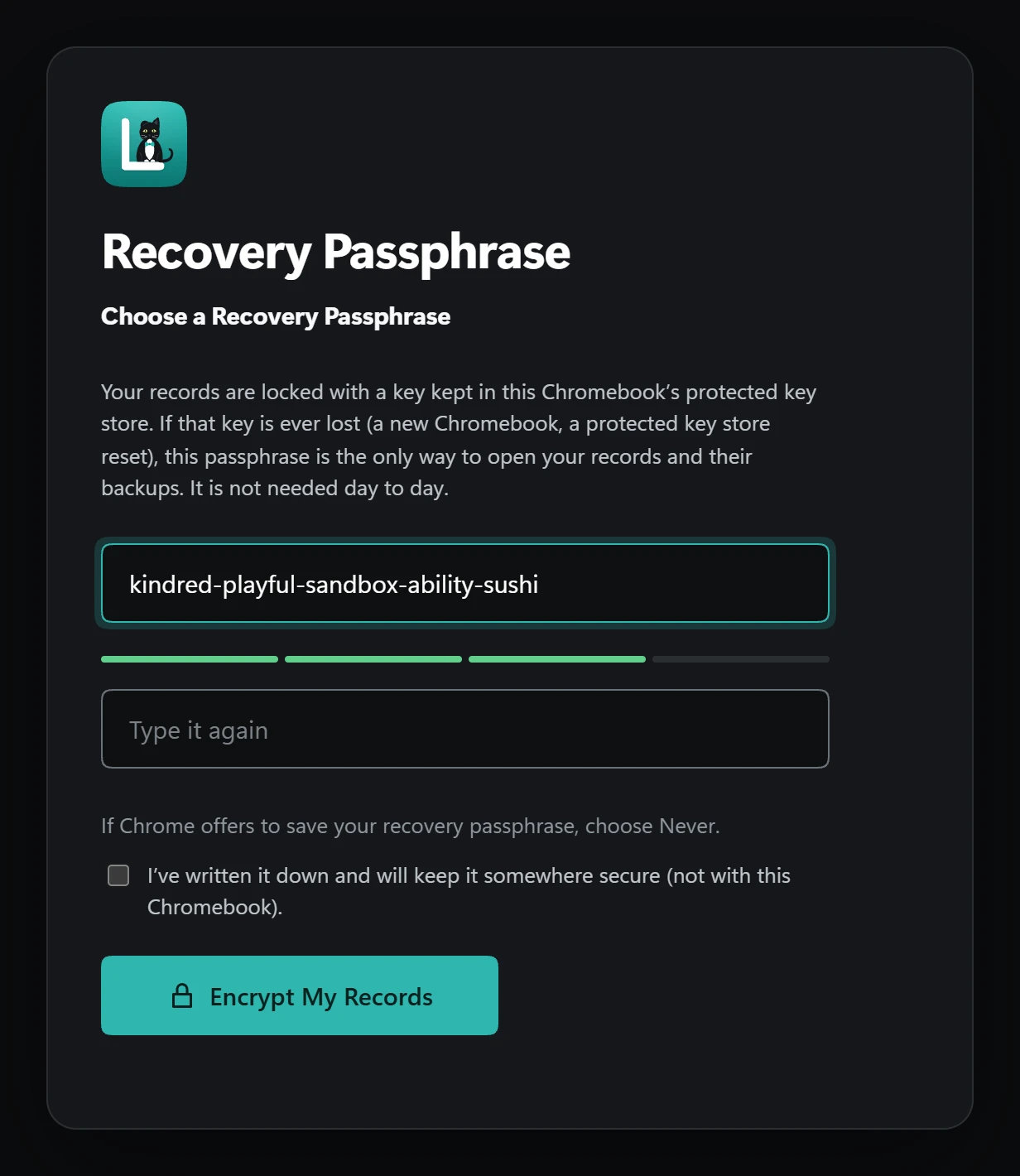
Choose Confirm It’s Me and use the Chromebook’s screen lock. Write down the recovery passphrase it suggests, tick the box and choose Encrypt My Records: it opens your records if this Chromebook’s key is ever lost, and we can’t recover it. Then choose Open the Records, then Start with an Empty Record.
Activate It
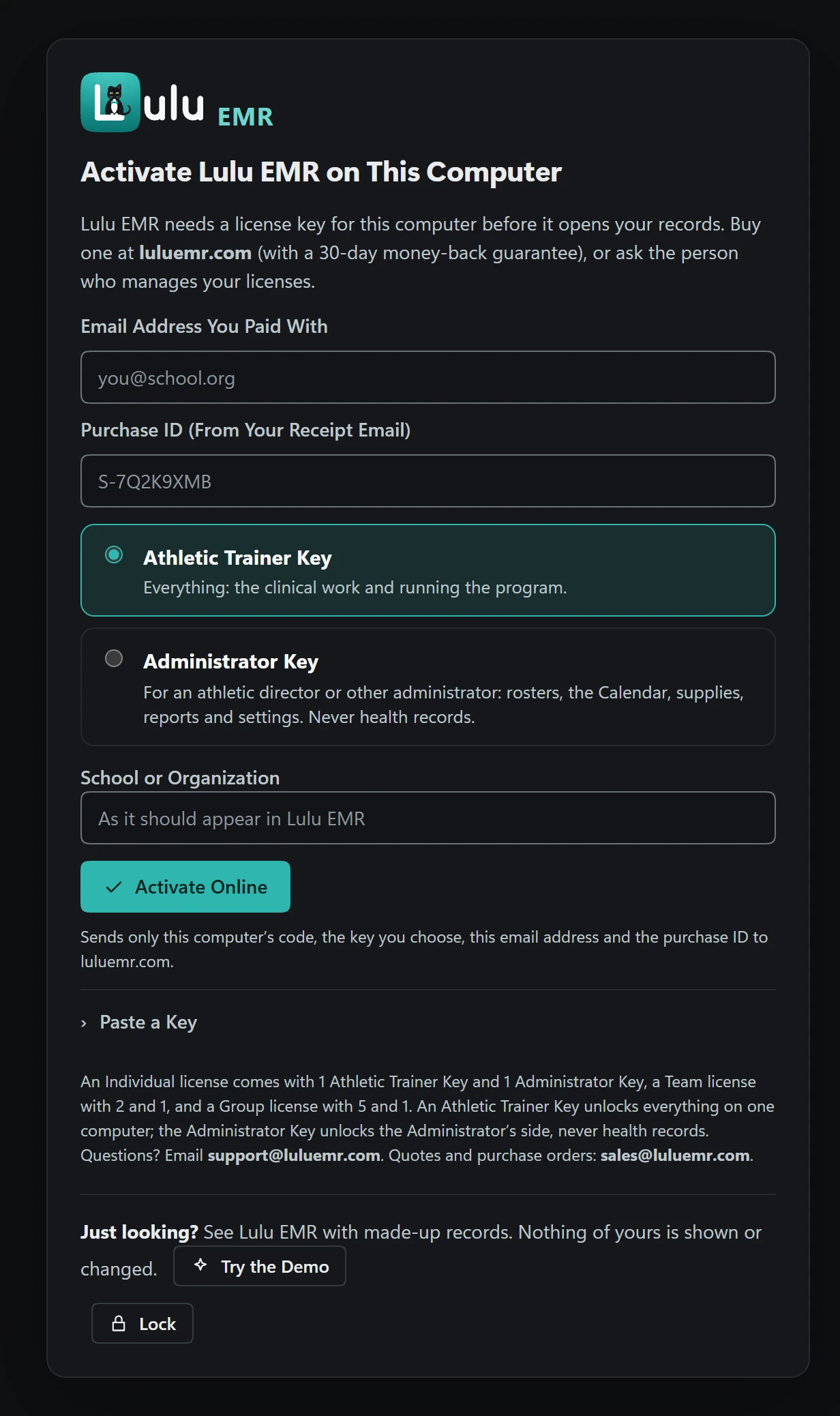
On Activate Lulu EMR on This Computer, enter the email address you paid with and the purchase ID from your receipt email, choose Athletic Trainer Key or Administrator Key and click Activate Online. The first computer also asks for your school or organization’s name.
Turn On Sync & Backups
Your records are kept in Chrome’s storage on this Chromebook, encrypted. In Settings → Sync & Backups, choose Set Up Sync… and a folder under Google Drive: if Chrome’s data is ever cleared, the backup brings your records back. How it works.
Next: the iPhone and iPad kiosk. Lulu EMR updates itself: a new version waits until you choose Restart. Before you uninstall it, export a copy, because removing the app can also clear its records.