
Features
Everything Lulu EMR does.
This is everything in Lulu EMR 1.0.7 for Mac, Windows and Chromebook. Every license includes all of it, with no tiers or add-ons. The iPhone and iPad apps are coming to the App Store, included with every license.
Home and the Training Room
Who's in the room, who can play, and what needs you next.
Home
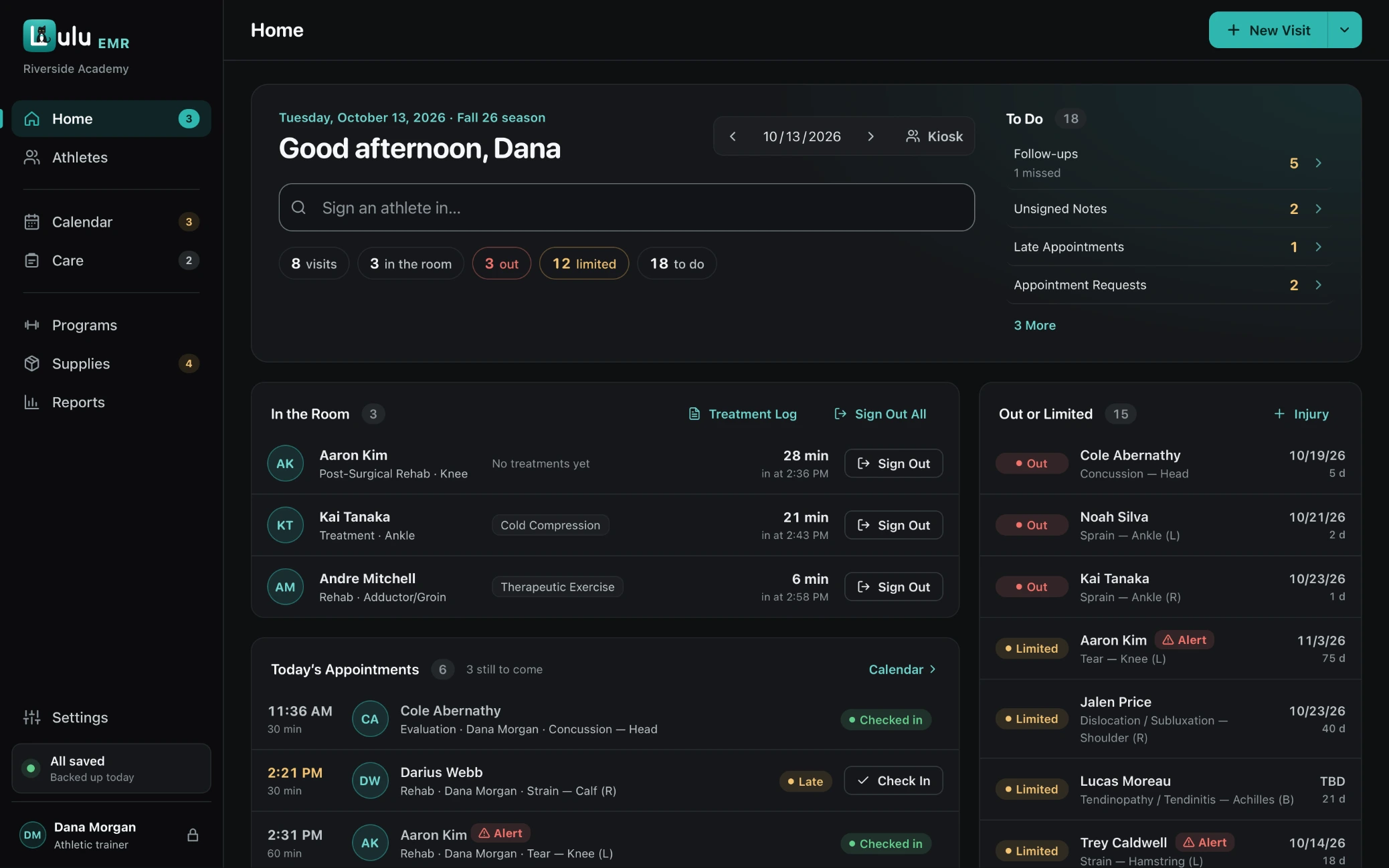
A greeting, the sign-in box and the day in four numbers, with the last 7 days. See who’s in the room and for how long, the day’s visits, anything that needs your attention, and who’s out or limited. Sign athletes out one at a time or all at once, and use the date box to look back at any day.
Main Menu
Home and Athletes, then the day’s care, then Programs and Reports. The button at the top right adds what the page is about, and the menu beside it adds anything else; on a chart, it’s for that athlete.
Signing In
Type a name in the sign-in box. Misspellings and nicknames still match, the sport fills in from the roster, and Repeat last visit copies a returning athlete’s usual treatment.
4 More in Home and the Training Room
Visits
Log the reason, body region, side, treatments and status. Pickers take more than one choice, offer your most frequent picks, and turn shorthand like “Premod” into the full name. See every visit by day or as a table you can sort, with search, a date range and filters. A visit that ends after midnight is recorded as ending the next day.
Follow-ups
Referrals, follow-ups and reviews from visits and notes land on one list, oldest first. Close one when it’s handled and it comes off the list.
Athlete Kiosk
Run a sign-in station on a spare screen, or on an iPad with Lulu EMR Kiosk. Athletes type the first letters of their name and choose it. Someone back within three weeks can tap Same as last time. Someone arriving picks a reason, taps where it is on the body, and, for new pain, says how bad it is, which shows beside their name on Home; someone already in the room is signed out and can say how they feel. They only ever see first names and last initials, and nobody can leave the kiosk without a PIN, Touch ID, Windows Hello or the iPad's own passcode.
Getting Started
The first time you open it, Home walks you through your organization’s name, your athletic trainers, an off-site backup and your roster.
Athletes and Charts
Every athlete's season on one chart.
Roster
Each profile holds the athlete’s team, grade, guardians, medical alerts, medications and school email, and a guardian is one tap away by phone or email. View the roster as cards or a table. Old names and nicknames still turn up in search, and Lulu EMR won’t add the same athlete twice.
Physicals and Baselines
Each athlete’s physical exam and concussion baseline show as Valid, Expiring, Expired or Missing, based on the time limits you set.
Injury Cases
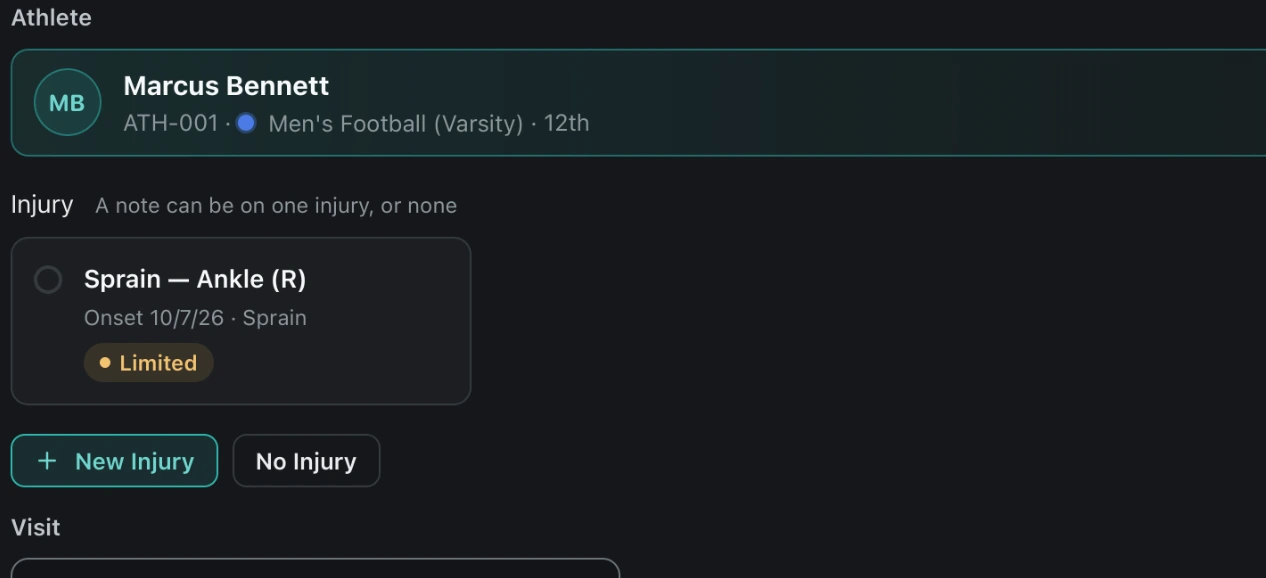
Write the injury once: a new evaluation opens its case, and a note on an open case can update its participation, expected return and status as you write. Every note that can be on an injury starts with the athlete’s open injuries as cards, the latest already chosen, or New Injury to start one right in the form. Each case lists its notes in order. Mark each injury Full, Limited or Out, and the athlete’s availability follows. Track referrals, surgery and the expected return. A return-to-play note can clear the case, or reopen it.
4 More in Athletes and Charts
ICD-10 Codes
Add one or more diagnosis codes to an injury from the full ICD-10-CM list, athletic training codes first. Each condition is one row with a plain name, like Ankle sprain or ACL sprain, and the side and visit are chosen under it, already set from the injury's side. Shorthand like ACL, ATFL or rolled ankle finds them.
Timeline
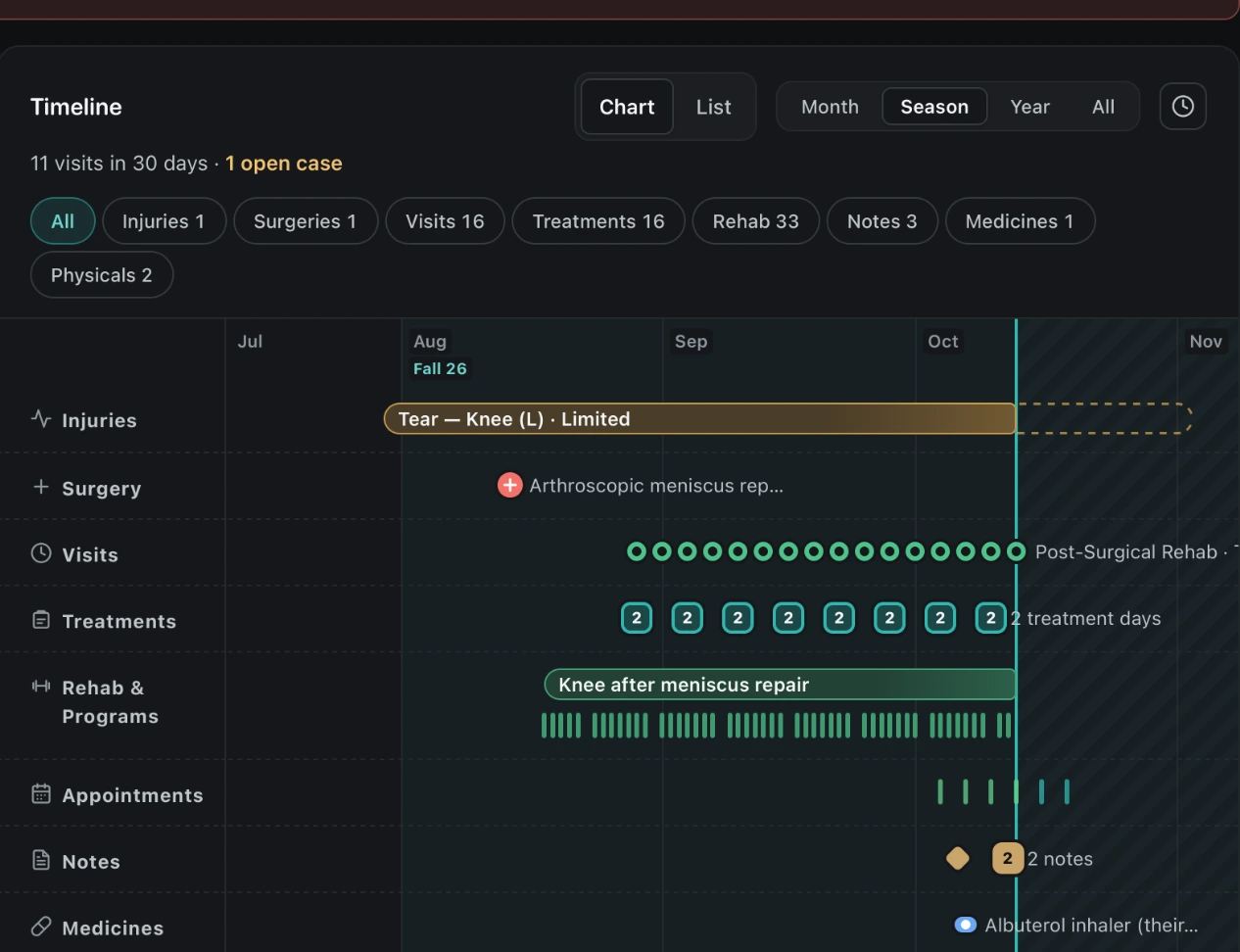
Readable at a glance: a summary strip on top (status, days out, recent visits and open items), then labeled lanes for injuries, surgeries, visits, treatments, rehab and programs, notes, documents and physicals. Injury cases are bars from onset to return, crowded marks gather into one with a count, and a list view reads the same events in order for the keyboard and screen readers. Each note shows its type and the one line that matters, in its group’s colour, such as “25 errors · +13 vs baseline” for a BESS. Zoom from a month to everything; it prints as the list.
Documents
Drop PDFs and photos anywhere on a chart, like doctor’s orders, clearances, imaging and physicals. Each file is encrypted with its own key, opens right in the app, and can be saved as a password-protected copy. A removed document can be put back. To attach one that’s already on the profile to a visit, case or note, choose the athlete’s documents next to From your files: it’s linked, not copied.
Merging Duplicates
If the same athlete was added twice, Merge combines the two charts after showing you what will move. A safety copy is saved first.
People and Access
A sign-in for each person, and a role that fits what they do.
Your Own Sign-In
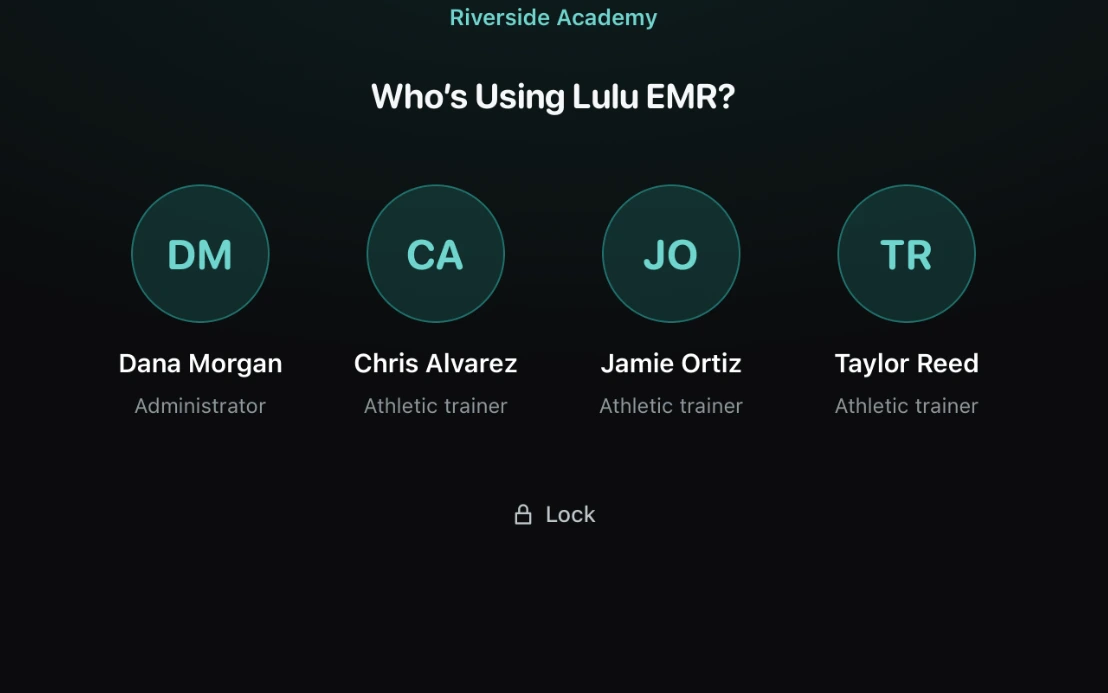
After the computer’s own unlock, each person signs in: with Touch ID, Windows Hello or the Chromebook’s screen lock for the one person a computer is set up for, or by choosing their name and typing a passcode. Notes, signatures, edits, shares and the activity history record who did each thing.
Two Roles
Athletic trainers do the day-to-day clinical work. The Administrator manages settings, people, backups and the license, and sees the program in numbers, never a health detail. An athletic trainer can also be the Administrator. Each person can fix their own name and credentials in Settings → You. Coaches stay in the loop with the availability report, printed or saved as a protected PDF, team by team.
Several Computers
Athletic trainers on different computers work from the same records through one shared Google Drive or OneDrive folder, set up once in Settings → Sync & Backups. Everything in it is encrypted, and when two computers change the same thing differently, nothing is lost: the other version is set aside for review.
1 More in People and Access
Phones Belong to a Person
Each paired iPhone belongs to someone, and its changes are recorded as theirs. A phone whose person is removed stops syncing and erases its copy. A kiosk iPad belongs to no one: its sign-ins are recorded as the kiosk's.
Importing Past Records
Bring your roster and earlier seasons with you, from anywhere.
Your Roster, from Anywhere
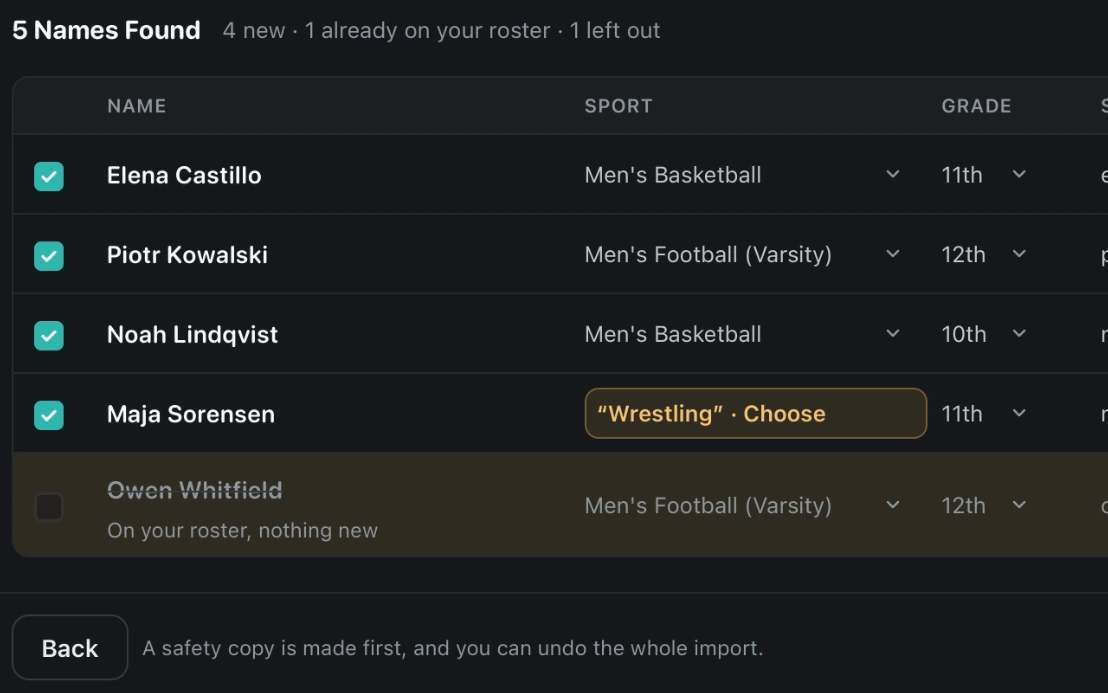
Paste a roster from a spreadsheet, an old program’s export, an email or a document, or choose a CSV or Excel file. Lulu EMR finds each athlete and their sport, grade or class year, birth date, emails, parents and phones, allergies, medications and physical dates, tidies names, combines athletes listed twice, and fills in what’s missing for athletes already on the roster. You review it all first, and an import can be undone.
Spreadsheets
Bring in past visits, sign-in sheets and injury history from CSV or Excel. Lulu EMR guesses the columns, matches names to your roster, shows every row it will add, skip or need fixed, saves an encrypted copy first, and can undo an import.
Clinical Notes
Notes that follow your exam, write the injury once, and keep every signed version.
Tap the Body
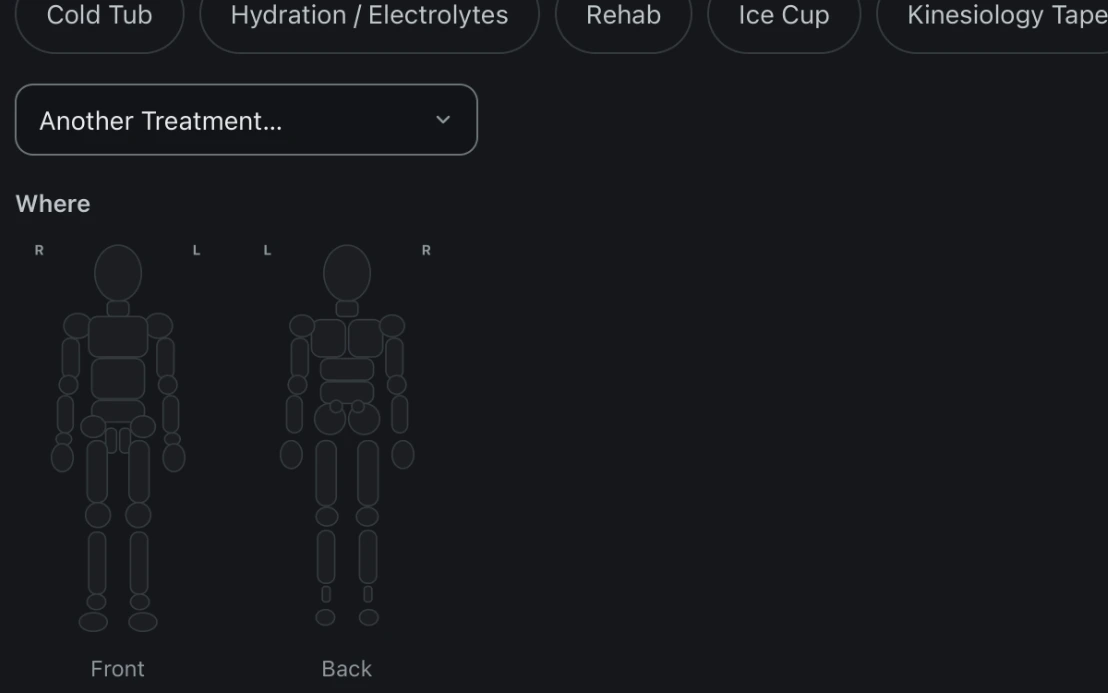
Choose the body region and side by tapping a front-and-back figure. It works on visits, injury cases, evaluations and treatment logs, on the computer and the iPhone.
Evaluations
Injury evaluations record special tests, range of motion, strength (0 to 5) and functional tests, and can start a home program from what you found. Long sections fold away, each with a one-line summary of what's filled in. A re-evaluation carries the first exam forward and shows the two side by side, under “Compared with the First Evaluation”. Return-to-play notes check off your own criteria and record the clearance. Evaluations, re-evaluations and return-to-play notes can record your own outcome scores, such as pain or confidence out of 10, and each case charts them over time.
Concussion Care
The Concussion Check scores each symptom from 0 to 6 and shows the severity trend over time, with the case’s latest BESS, VOMS, ImPACT and SWAY results in one panel. BESS and VOMS have forms of their own. Return-to-learn and return-to-play stages are signed off one at a time, and the last one offers to write the clearance.
4 More in Clinical Notes
Treatment Notes
Treatment logs, taping and bracing included, cover a whole line of athletes at once. Rehab sessions update the athlete’s program, heat and vitals notes flag readings past your thresholds (a red flag starts an emergency report with the readings), and emergency reports keep a timed record of what happened, vitals and who was notified.
Picking a Note
Fifteen note types, each listed once in four groups: For an Injury, Concussion, Care in the Room, and Contact and Other, which holds communication logs, referrals and general notes. The group that fits the athlete comes first, and a type that fits says why, such as “Re-evaluation due Nov 4”. One note leads to the next: “Write the Referral”, “Write the Clearance”, “Write the Discharge Summary”.
Signing
Signing a note locks it. A signed note can be corrected (signed again, with the version before kept in its history) or removed and restored, each with a reason, and addenda add to it. Drafts save as you type, and follow-ups you set in a note stay on your list until they’re done.
Progress Lines
Read all of a case’s notes in order, oldest first, from the athlete’s chart or the Notes list.
Audio Notes (iPhone)
On the iPhone: talk through a note, then check what it heard.
Record a Note
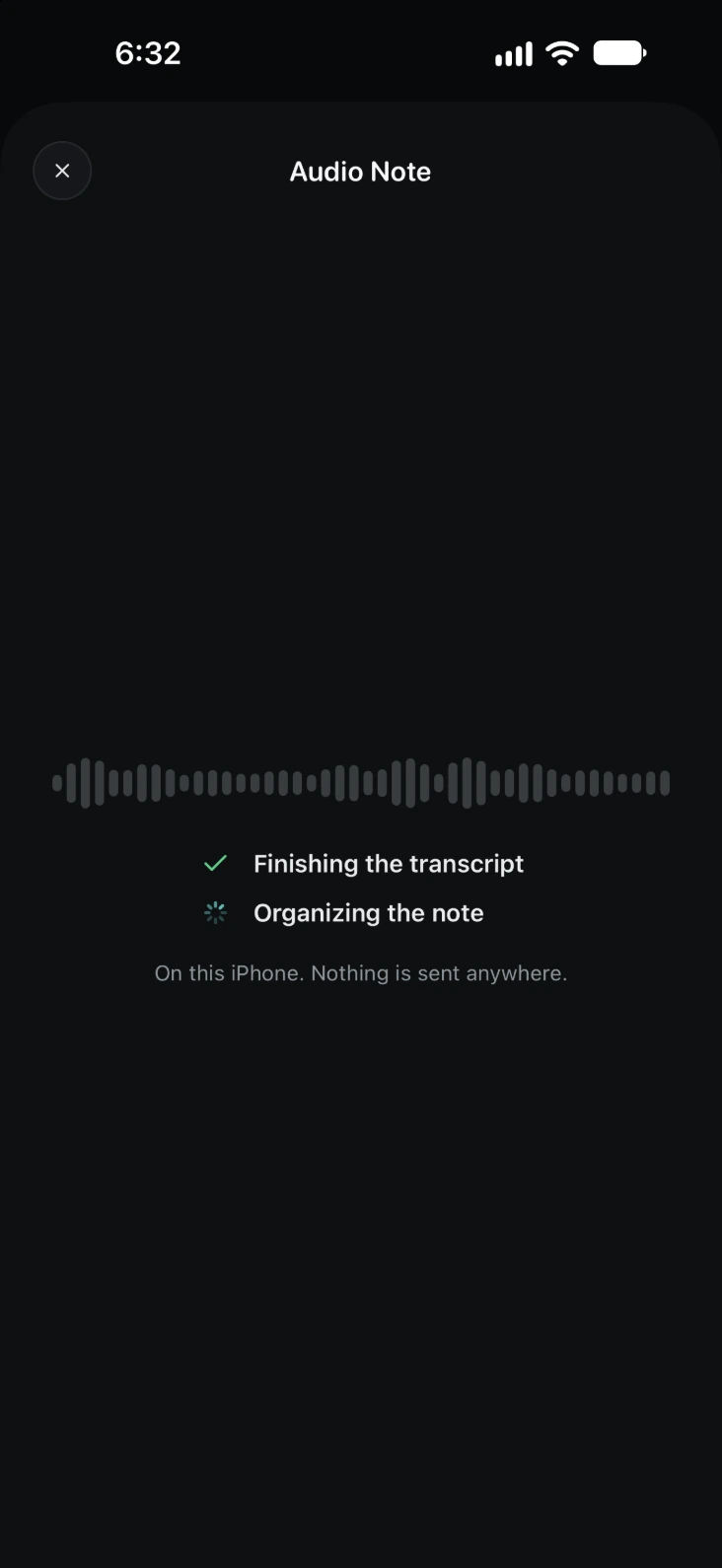
Record a note on the iPhone, watch the waveform as you speak, and play it back before you save it. It’s turned into text on the phone, and organized into a summary, body region, plan and follow-up by the phone’s own model or by simple rules. Nothing leaves the phone except to your computer. Machine-written text is labeled until you review it, and signing on the Mac needs that review.
One Athlete, Several or None
A note can be about one athlete, several (each gets their own note, sharing the recording) or no one (a general note, under Notes → General). The recording is encrypted like any document and plays on the computer.
What Comes Next
From what you said, each note offers the next steps, each one a switch: update the athlete's case (who sits out, and until when), open a case with an evaluation for a new complaint, or log the treatments you gave as a visit.
Home Exercise Programs
Home programs that are quick to build and easy to follow.
Exercise Library
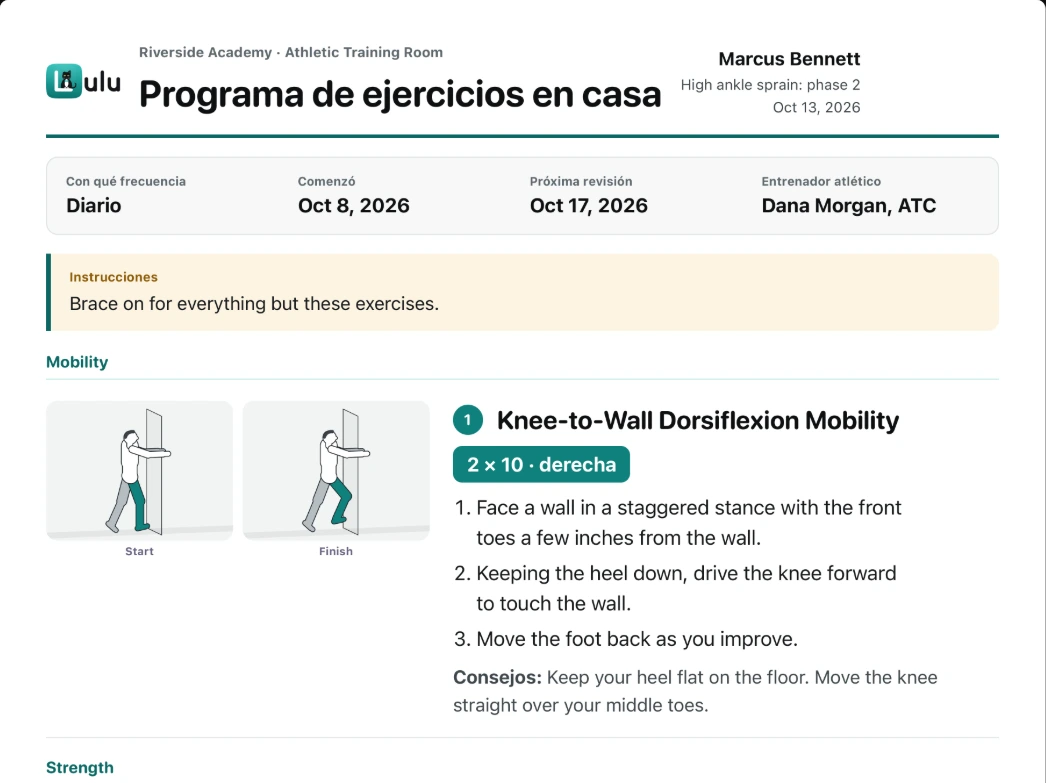
229 exercises, each with steps, coaching cues, when to stop, variations and an animated figure. Filter by body region, goal, equipment, position or level, keep favorites, and add exercises of your own.
Program Builder
Set the sets, reps, hold, side, load and tempo, how often and for how many weeks. Split a program into phases or days and add supersets. Start from scratch, from an example program for the injury and adjust it for each athlete, or from a copy of an earlier program. Assign a template to a whole team, and each athlete gets their own program to change later.
Tracking
Log each session with pain and effort, and see how closely the athlete is sticking to the plan. Step an exercise up or down with one tap. Signing a rehab session updates the program, and a Modified label tells you when the athlete’s handout is out of date. A phased example shows what has to be true before the next phase, and Start the Next Phase moves the athlete on. If the case’s latest return-to-play note sets limits, such as no jumping, an exercise that runs into them is flagged for you to check.
4 More in Home Exercise Programs
Handouts
Choose a compact, detailed or large-print handout, and add a log sheet the athlete ticks off each day. An exercise never splits across two pages, and a group heading stays with its first exercise. The handout’s own words, like its headings, the log sheet and the safety line, can be in Spanish: a machine translation that says so, with the English as the original. Exercise names and steps stay as written. Print it, save it as a password-protected PDF, or email it.
Emailing Handouts
Lulu EMR’s own message screen checks the address, the message and the attachment. Choose Send, and the program goes from your school account in Outlook or Apple Mail (on Windows, Outlook), and Lulu EMR tells you once it’s sent. With Gmail or web mail, the message opens for you to finish. Programs go only to addresses on your school’s domain, a PDF’s password is never put in the message, and on the iPhone one tap sends it through your Mac.
Stretching Templates
Example stretching routines built from the research, one for the lower body (hamstrings, quadriceps, hip flexors and calves) and one for the upper body (the shoulder’s cross-body stretch, chest, upper back and neck), with 30-second holds. Adjust them for each athlete. Neither claims to prevent injuries.
Templates and Packages
Save programs as templates, and share exercises and templates with other trainers as packages that contain no athlete information.
Appointments and Calendar
Every booking, practice and game on one calendar.
Appointments
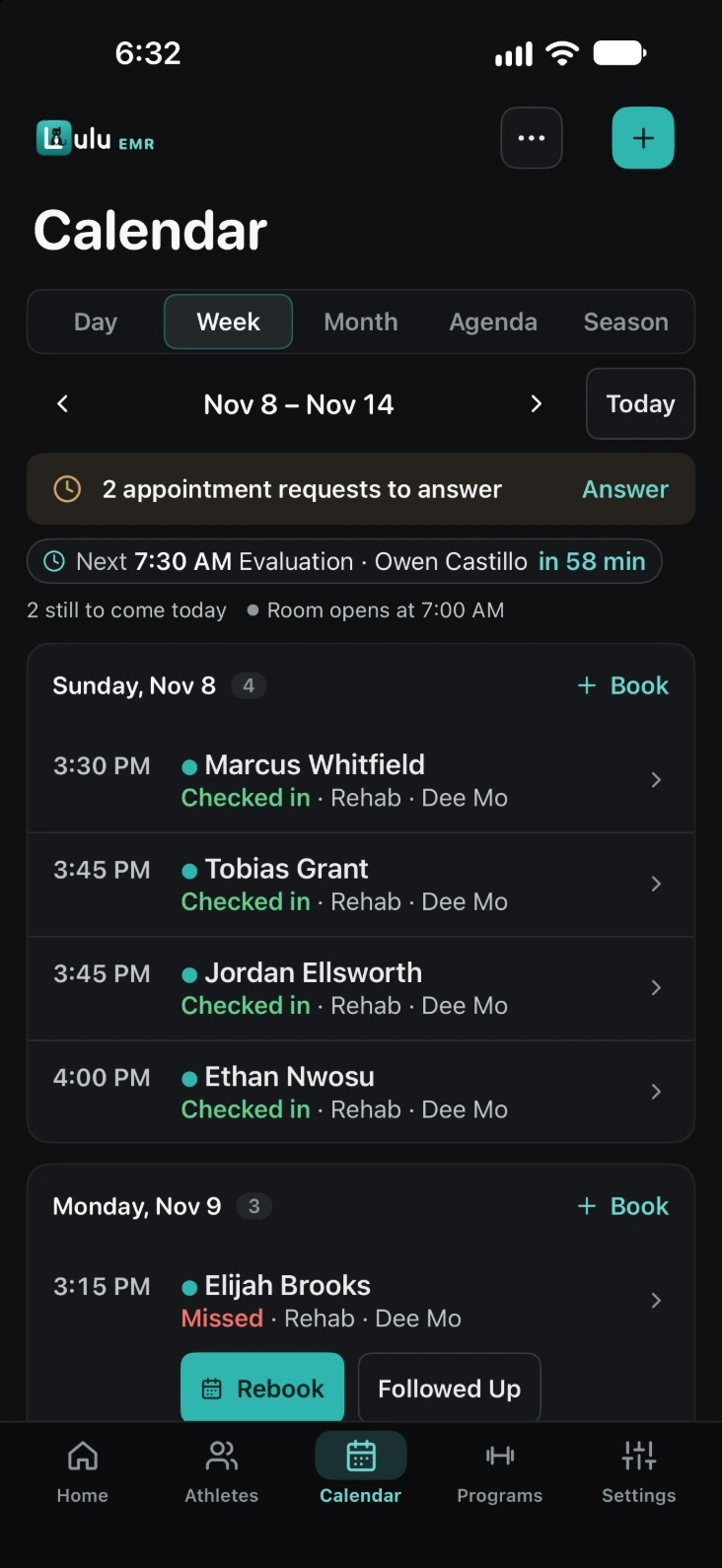
Book an athlete for rehab, treatment, a re-evaluation or a follow-up at a time, once or repeating (Monday, Wednesday and Friday for three weeks, say), linked to their case or program. Conflicts are flagged, Home shows today’s appointments beside the room, and a missed one becomes a follow-up. Attendance feeds the case and the reports.
Calendar
A Calendar tab on the desktop and the iPhone shows appointments with everything else that has a date: follow-ups due, expected returns, practices and games, and program check-ins, by day, week or month, each in its own color. Click a time to book, drag to move, and print the week.
Kiosk Check-In
When a booked athlete signs in at the kiosk, the appointment is checked in. The kiosk itself shows nothing about it.
1 More in Appointments and Calendar
Reminders
An optional reminder goes to the athlete’s school address in one click, the way home programs are sent.
Medicines & Supplies
Every medication given, on the record, and the supplies on your shelves.
Medication Log
Every over-the-counter dose given: the athlete, the medicine and strength, the amount, route, time and reason, who gave it, and the lot and expiry from stock. It shows on the chart, the timeline and the visit, in search, reports and the spreadsheet export, with edit history and Undo.
Standing Orders
An Administrator adds your team physician’s standing orders: the medicines allowed, their doses and limits, and who may give them. Lulu EMR comes with none. Before you save a dose, Lulu EMR checks it against the order and the athlete’s record, and keeps your reason if you give it anyway.
Supplies
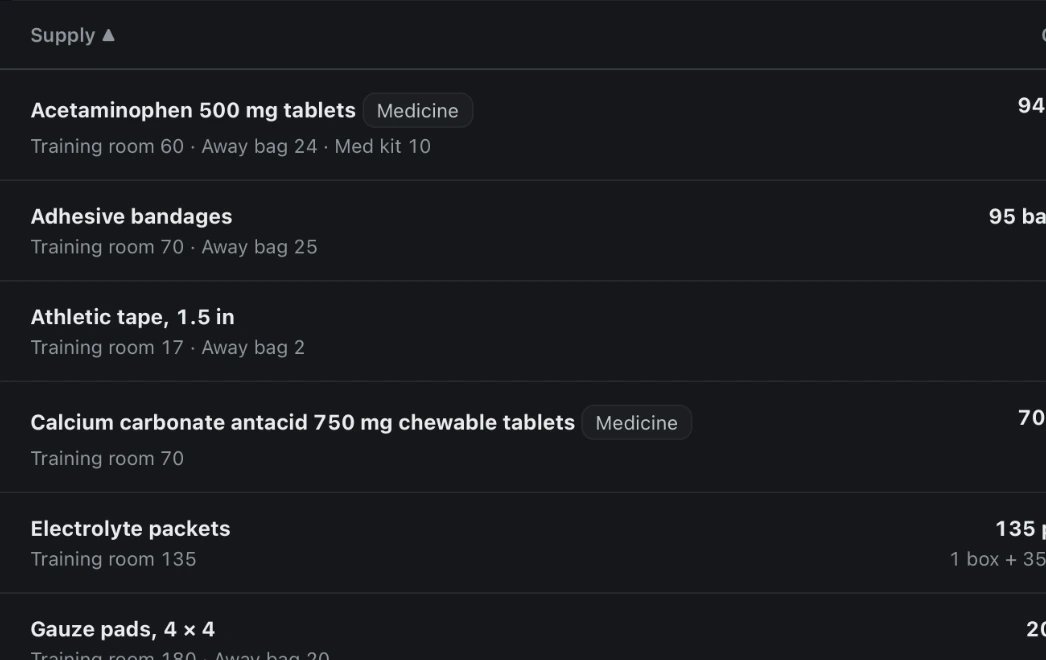
Everything you stock, by place: the training room, a med kit, an away bag. Medicines are kept by lot and expiry, doses take what they use, counts and Used Some cover the rest, Home says what’s running low or expiring, and the Reorder list says what to order, in whole packs.
1 More in Medicines & Supplies
On the iPhone
Lulu EMR Mobile gives doses and keeps supplies too, with the same checks, and the Mac checks each one again when it arrives.
Injury Rates
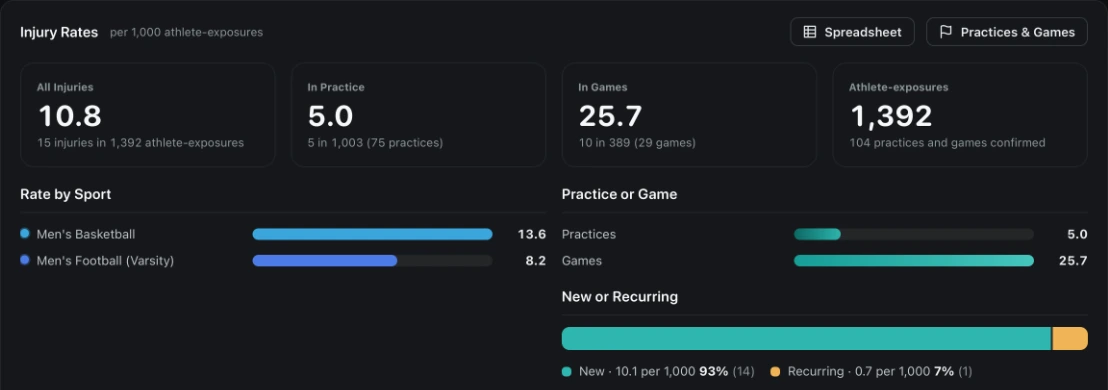
Injury rates for practices and games, per 1,000 athlete-exposures.
Practices & Games
Set up each team’s season once from its schedule, then confirm who took part each day in a click from Home: everyone, everyone except, or only some. An injury case records the practice or game it happened in, and whether it’s new or recurring.
Injury Rates
Reports shows injuries per 1,000 athlete-exposures, by sport, in practice and in games, by body region, and new or recurring, against the season before, as a chart and in print. The spreadsheet has counts and rates only, and any count under 5 reads “fewer than 5”.
On the iPhone
Confirm the day’s practices and games, log one, link an injury to its practice or game, and see the rates on Reports.
Reports and Sharing
Numbers your athletic director can use, and summaries you can share safely.
Reports
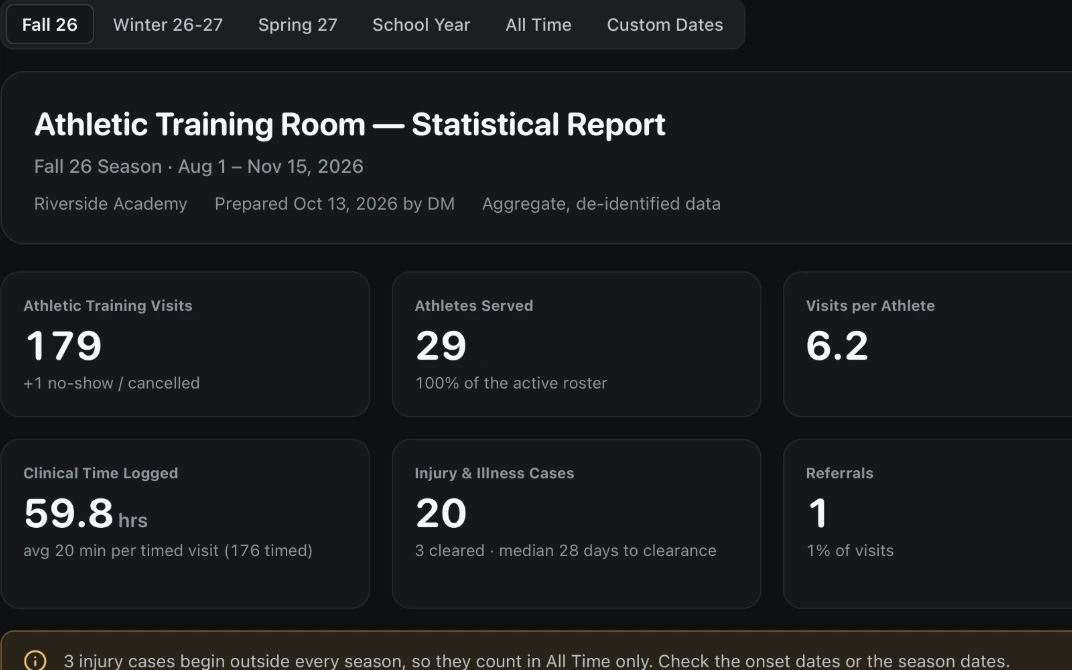
Visits by month, week, weekday and time of day, top sports, treatments, body regions, why athletes came in, injury and illness surveillance, roster readiness, rehab and programs, and average time per visit by team. Choose a season, the school year, all time or your own dates.
Exports
Copy a report, export it as a CSV or print it. Spreadsheet exports of visits, athletes, injuries, notes and programs leave out names, birth dates, contacts and free text, and show athletes only by chart ID.
Care Summaries
Share a summary with another clinician for a reason you choose, such as a referral or a return-to-play update, and pick what goes in it. Save it as a password-protected PDF, print it, or copy it as labeled text. The same screen prints an athlete’s whole chart, and every share is logged.
Lists, Seasons and Rules
Set it up the way your training room works.
Dropdown Lists
Treatments, reasons, body regions, sports, injury types, concussion symptoms, return-to-play criteria and the rest are yours to edit. Renaming an option can update past records too, and removing one never changes them.
Cleanup & Shorthand
Values that don’t match your lists are gathered in one place so you can map them to a standard option. Shorthand you add there is converted automatically the next time someone types it.
Seasons and School Years
Name your seasons and their dates, and add the next school year with one click. Today and Reports count by season.
3 More in Lists, Seasons and Rules
Rules
Set how long a physical and a concussion baseline stay valid, when to flag them as expiring, when a follow-up is overdue, and the heat and vitals thresholds your team physician approves.
Your Organization
Your school’s name and room appear on handouts, care summaries, reports and the kiosk. Choose a dark or light look, and give each sport its own color.
Athletic Trainers
Each person’s initials, full name and credentials. Initials sign notes, and names and credentials print on handouts.
Safe Editing
Every change is kept, and the important ones get a second look.
Edit History
Profiles, visits, injury cases, draft notes and home programs keep every earlier version: what changed, when, who changed it and on which device. You can always undo.
Review Before Saving
Before an important change is saved, such as a name, birth date, medical alert, medication, diagnosis, date or removed exercise, Lulu EMR shows it to you to confirm.
Merges and Restores
Combine duplicate athletes, or bring in a colleague’s file after reviewing what’s new, what’s changed and what conflicts. A signed note is replaced only by its own correction, deleted and removed records stay that way, and a safety copy is saved first.
Security and Privacy
Encrypted, and locked whenever you step away.
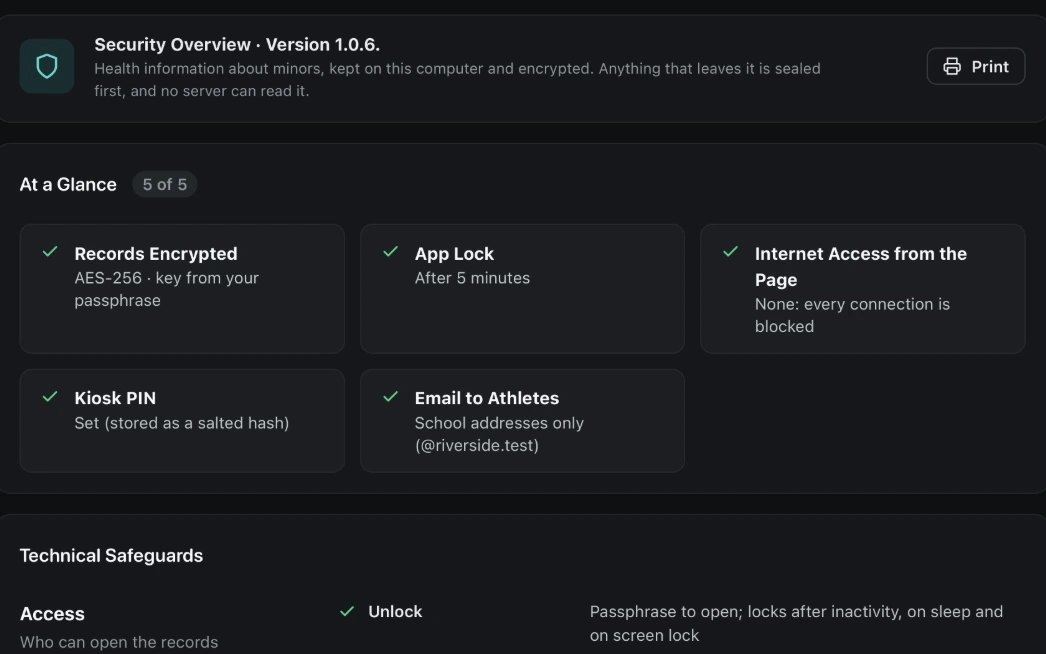
Encrypted
Records, backups, exports and documents are all encrypted with AES-256-GCM, and passphrases are protected with Argon2id, so they can’t be guessed quickly.
App Lock
Unlock with Touch ID, the Mac password, Windows Hello or the Chromebook’s screen lock. Lulu EMR locks itself after a few minutes without use, when the computer sleeps and when the screen locks. Syncing with the iPhone and the kiosk iPad goes on while it’s locked, with nothing shown on screen.
Network
Lulu EMR’s screens can’t reach the internet. The app talks only to luluemr.com and app.luluemr.com, one site at two addresses: for its signed updates, for license keys when you ask, and to pass an iPhone’s or kiosk iPad’s sealed changes when it can’t reach the computer nearby, which the site can’t read. No accounts, no analytics, no telemetry.
3 More in Security and Privacy
Security Overview
A page in Settings lists each safeguard and whether it’s working, with more detail for administrators.
Activity History
Saves, backups, restores, shares and syncs are logged. The log never includes what’s in a record.
Diagnostics
If something goes wrong, you can save a troubleshooting file. It has no names in it, and it’s only made when you ask for it.
Backups
A backup every day, and an off-site copy only you can open.
On This Computer
Lulu EMR makes an encrypted backup every day, and again before any restore, merge or replace. You can also back up whenever you like, and restore any backup after reviewing it.
OneDrive Backup
Keep encrypted, versioned backups in a OneDrive or Google Drive folder you choose. Only your backup passphrase or printed recovery key opens them, and Lulu EMR notices if files have been tampered with, gone missing or been rolled back. Nothing but encrypted records goes in the folder.
Encrypted Exports
Save an .emrx copy with its own passphrase to move your records to another computer, Mac, Windows or Chromebook, or to give them to a colleague.
1 More in Backups
Recovery Passphrase
If this computer’s key is ever lost, for example after a new hard drive, the recovery passphrase you chose at setup gets your records back.
Lulu EMR Mobile (iPhone)
The training room in your pocket: every record, on the field and on the bus.
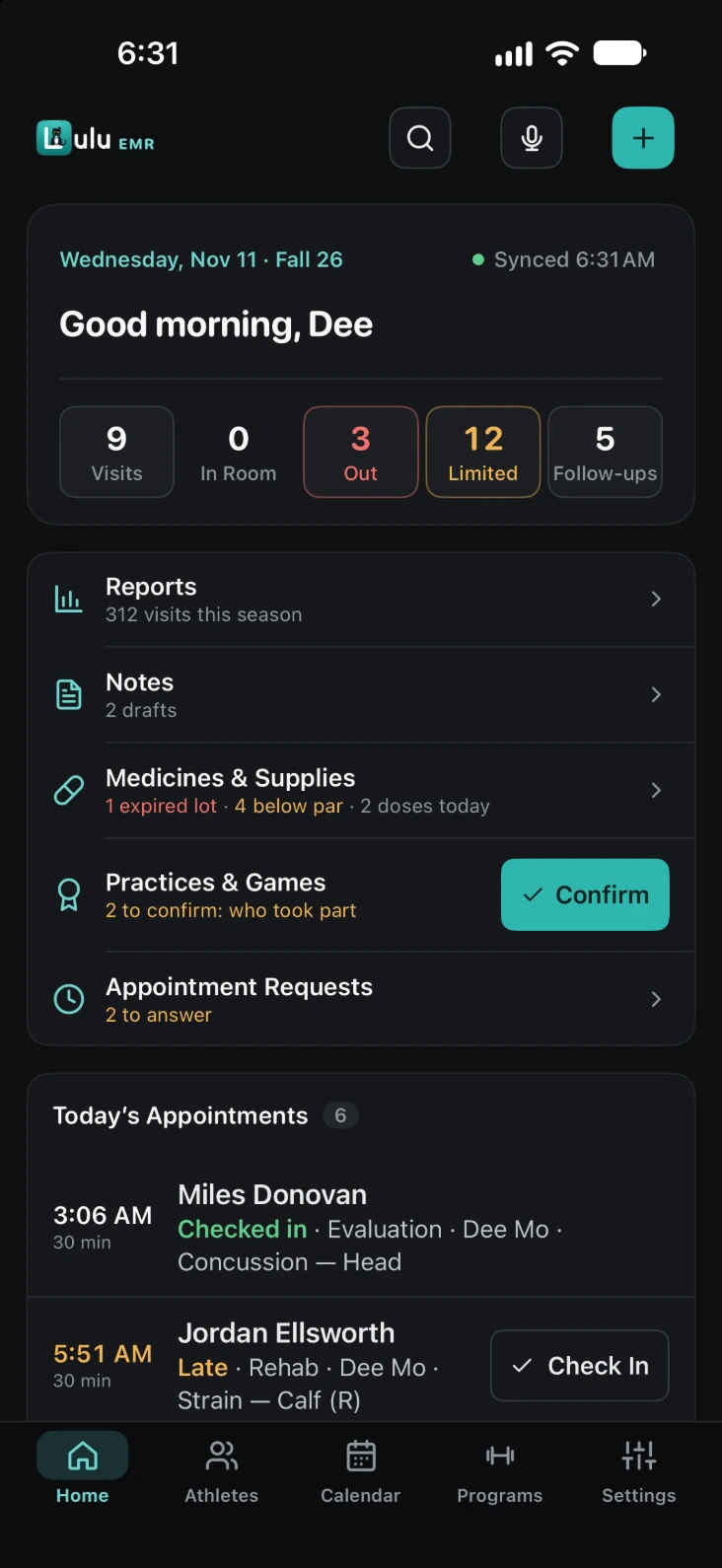
Today and Athletes
See who’s in the room, sign athletes in and out, open charts, and quickly log treatments, injuries and visits.
Notes and Documents
Every note type from the Mac, each laid out for the phone, including the body map, symptom scores, return-to-learn and return-to-play stages, and treatment logs for several athletes at once. Drafts, addenda, authors and progress lines come along too. Open documents from the Mac, or scan new ones on the phone.
Home Programs
Build programs with the full library and your own exercises, or start from an example, and set how many weeks they run. Log sessions with pain and effort, check adherence, and step exercises up or down, with the same moving figures as the Mac. Start a program’s next phase or assign it to a team. Pause, finish or archive a program, and email or share a handout, in large print, with a log sheet or with its own words in Spanish, that’s password-protected or has no name on it.
5 More in Lulu EMR Mobile (iPhone)
Follow-ups and Reports
Open referrals, follow-ups and reviews, including the ones from notes, and mark them done or closed from the phone. The season’s and school year’s numbers are there at a glance.
Sync with Your Computer
Pair once with a code, from Settings → Sync & Backups on a Mac, a Windows PC or a Chromebook. The iPhone says Synced whenever it has sent everything. Records sync between them, encrypted end to end: over your local network in the training room, and through luluemr.com when you’re away. Syncing goes on while Lulu EMR is locked, changes made offline sync later, and the computer reviews each one just as it reviews its own. With a Chromebook, everything goes through luluemr.com.
Away from the Computer
The iPhone keeps syncing away from the training room through luluemr.com, which keeps only sealed changes it can’t read until the computer has them safe. On a Mac or Windows PC, Lulu EMR Helper collects them even while Lulu EMR is closed, until it opens again. The other way, the computer leaves the phone its changes there as you work (a Mac or PC also as it quits or goes to sleep), so the phone catches up even with the computer off. Settings → Sync & Backups shows what works when, and can keep the computer awake while devices are paired.
Emergency Viewer
If the computer allows it, the iPhone can open the newest OneDrive backup read-only. It asks for the passphrase every time.
Private
It opens with Face ID or a passcode, locks when it goes to the background, and keeps everything encrypted on the phone.
Lulu EMR Kiosk (iPad)
An iPad by the door, where athletes sign themselves in.
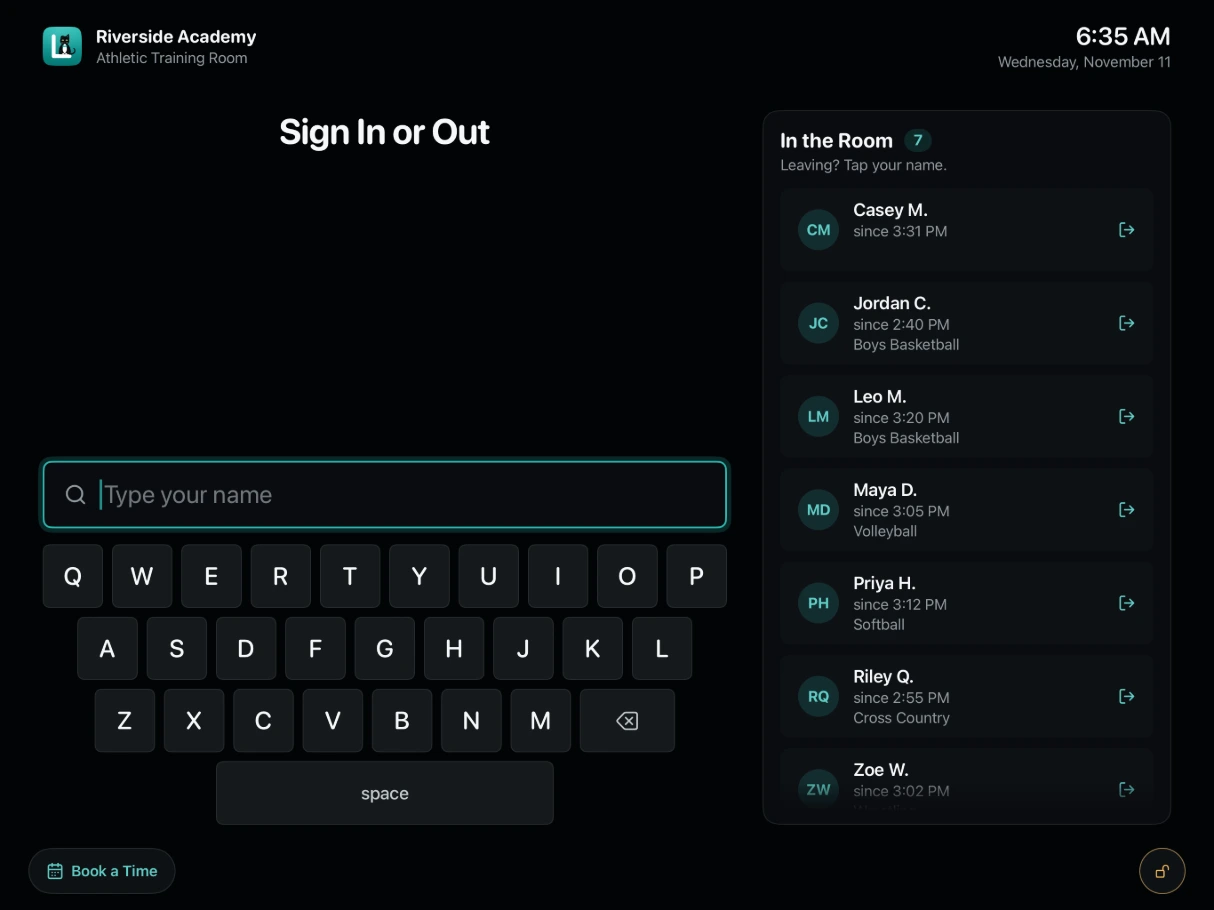
Sign-In Station
Athletes sign themselves in and out on an iPad by the door, on its own letter pad, while you work on the computer. Their sign-ins reach it within seconds, even while Lulu EMR is locked, and wait on the iPad while it’s closed.
Names Only
The iPad holds active athletes' names, sports and grades, and who's in the room: never records. An Administrator pairs it with a one-time code, and staff settings open with the iPad's own passcode.
Mac, Windows and Chromebook
The same app on Mac, Windows and Chromebook, and it updates itself.
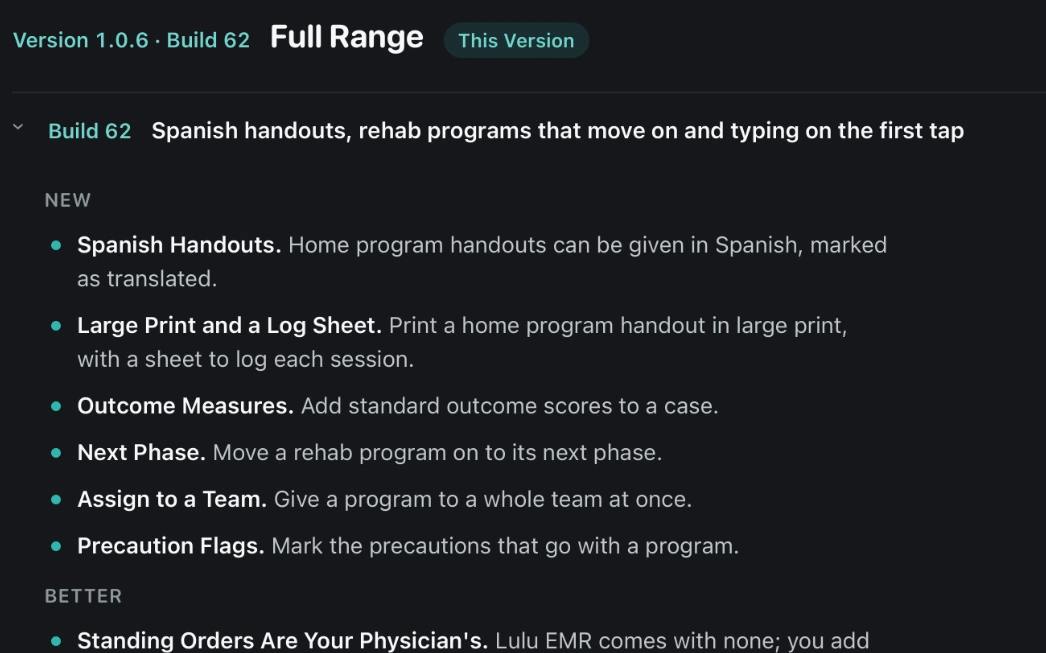
Three Desktop Apps
The screens and records are the same on all three. The Mac app uses Touch ID and the Keychain, the Windows app runs on Windows 10 and 11 with Windows Hello, and the Chromebook app opens with the Chromebook’s screen lock. Exports and backups open on any of them.
Windows Kiosk and Printing
While the athlete kiosk runs on Windows, the keys that leave an app are blocked. For a computer used only for sign-ins, an administrator can restrict one Windows account to Lulu EMR, and undo it, with scripts saved from Settings → Training Room → Sign-In Station. Attached documents print straight from the Windows app, without a copy being saved.
Keyboard and Menus
Find any athlete or page with Command-K (Ctrl+K on Windows and Chromebook), jump between pages with Command-1 to 8, and save, print, lock or export from the keyboard. The Mac has a full menu bar, and the Windows and Chromebook apps take the same shortcuts with Ctrl.
4 More in Mac, Windows and Chromebook
Guide
Every page is explained in Settings → Help & About → Guide and Shortcuts, along with the shortcuts, what the colors mean and a few good habits.
Installing
One download has everything: a disk image and installer package for the Mac (with Lulu EMR Helper inside), a setup program for Windows, the Chromebook app at app.luluemr.com (in Chrome or Microsoft Edge), and uninstallers that remove everything except your records. SHA-256 checksums come with every download.
Updates
Lulu EMR on the Mac and Windows keeps itself up to date: a new build downloads in the background, its signature and checksum are checked, and it installs when you restart or quit. On a Chromebook, it waits until you choose Restart.
Demo
To show Lulu EMR to someone, open the demo under Settings → Help & About → About, on the Mac, Windows, Chromebook or iPhone. It’s full of made-up athletes and lives in memory only, so nothing is saved or synced, and your real records stay locked until you leave it.
License
Pay once, activate a key for each role on each computer, and get every 1.x update.
License Keys
A Single license comes with 1 Athletic Trainer Key and 1 Administrator Key, a Duo license with 2 and 1, and a Staff license with 4 and 1. Each key unlocks its role on one computer, and a computer used for both holds both. Choose Activate Online and enter the email you paid with and your purchase ID, and the key installs itself. Keys are checked on the computer itself, without the internet, and never expire.
My Licenses
On luluemr.com, see each purchase with its keys and receipt, get a refund within 30 days, release a key from a computer you replaced, or move up to a bigger license for the difference. Schools can get a quote and pay by purchase order.
License Screen
Until a computer has a key, Lulu EMR shows the computer’s code and how to activate it. The demo and an encrypted export of your records are still there, and nothing is ever deleted.
Lulu EMR Mobile (iPhone) and Lulu EMR Kiosk (iPad) come with every license: a Lulu EMR Mobile Key for each Athletic Trainer Key, and 1 Lulu EMR Kiosk Key on a Single or Duo license, 2 on a Staff license. They pair with the Mac app; on Windows and Chromebook, the kiosk on the computer's screen works the same way.